

Introduction
LimeChat helps e-commerce brands sell, support, and market on WhatsApp. Limechat help reduce CAC, boost retention, and deliver amazing experiences through WhatsApp. Limechat offers- GPT-powered Chatbots for Human-level Experiences
- 2-way WhatsApp Campaigns for 2x RoI without spamming
- AI-enabled CRM built for e-commerce.
MoEngage × Limechat
The MoEngage and Limechat integration allows you to seamlessly orchestrate the end-to-end customer lifecycle from initial outreach, routed into a conversational experience, and through to omnichannel follow-up(s) via intelligent retargeting. With this integration, you can:- Trigger Limechat campaigns from MoEngage
- Receive User behaviour events from Limechat to MoEngage
Integration
- Ensure you have a Limechat account.
- Ensure you have access to your Limechat access token. You can access from your Limechat dashboard by navigating to Profile > Profile Settings > Access token
Trigger Limechat campaigns from MoEngage
Step 1: Get your Limechat account id and access token
Get your Limechat account id
On the Limechat Dashboard, copy the account id from your URL
Get your Limechat access token
On the Limechat Dashboard,- Click on the profile picture at the extreme bottom left
- Click on Profile Settings
- Scroll down to the bottom of this page and copy the Access Token

Step 2: Create a connector campaign on MoEngage
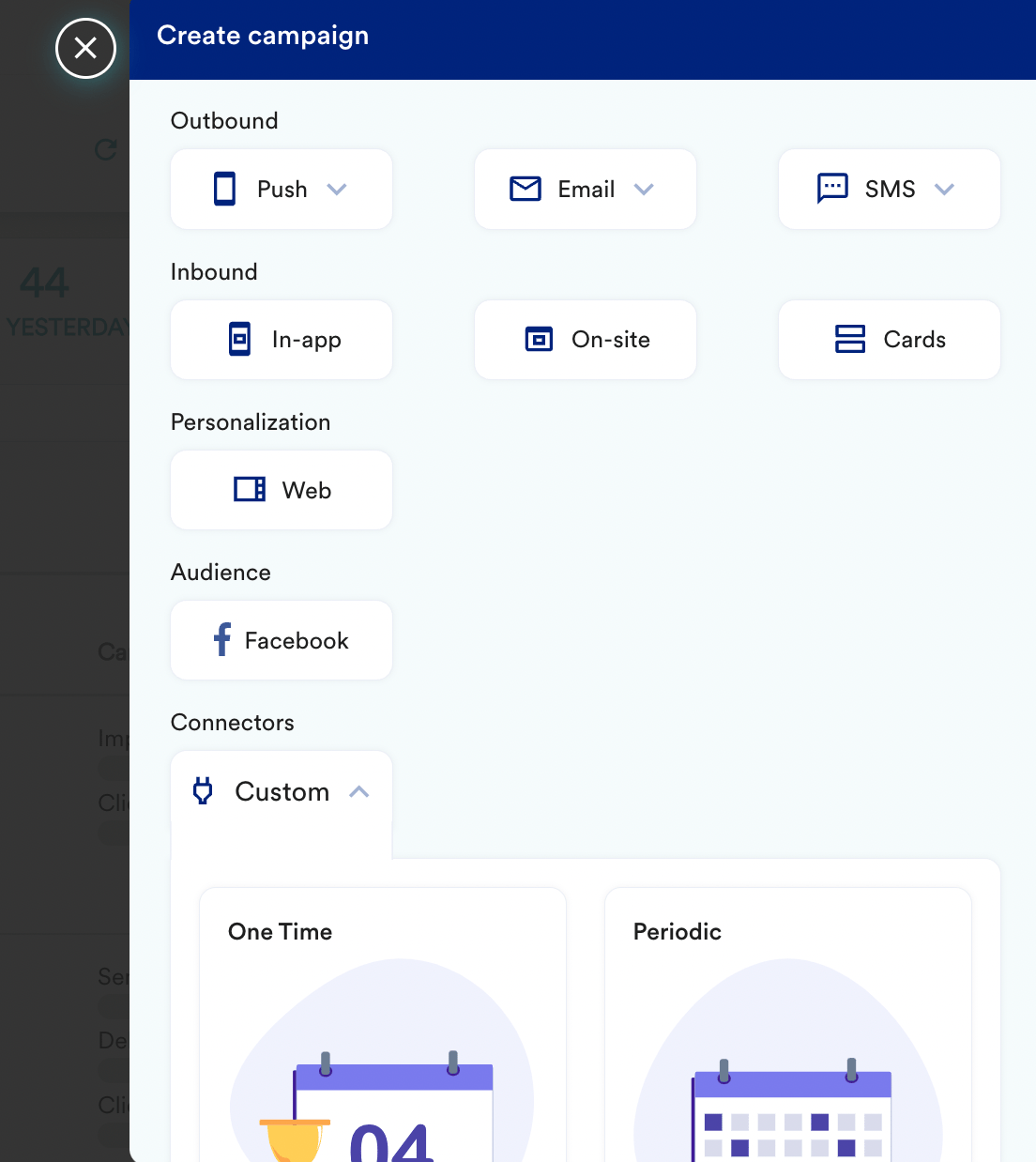
To create a connector campaign on MoEngage,- Navigate to Create Campaign > Connectors > Custom and choose delivery type most suitable to your needs
- On step 2 of the campaign
- Select method as POST
- Add Webhook URL as :
https://app.limechat.ai/api/v1/accounts/{account_id}/store_notifications/create_notification_limekit/
- In Headers, add
- Content-Type as application/json
- api_access_token as your
{Limechat access token}copied in Step 1.
- At this point, your campaign should be ready to test and send. You can also test your connector configuration using the Test functionality available on Step 2 of Create Connector Campaign.
